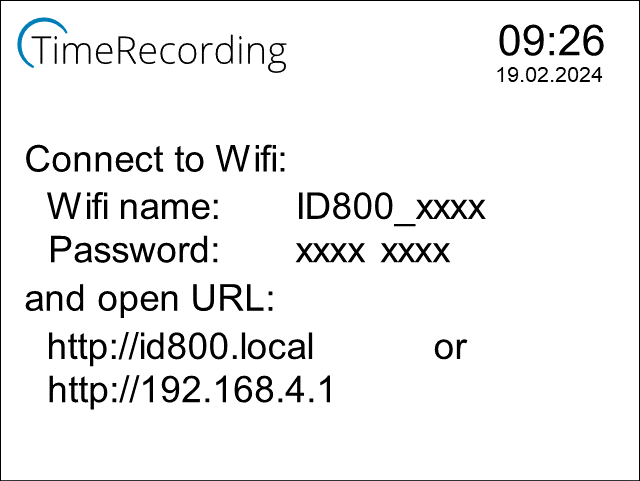
Your device may indicate that the connected network has no internet connection.
This is correct. Do not disconnect from the network!
Open your internet browser on the device connected to the time clock’s network, and enter one of the following addresses in the address bar: – http://id800.local or – http://192.168.4.1
Enter the Wi-Fi name and the associated password of the network you want to connect the time clock to on the configuration page. Check your entries and confirm them with “Apply.”
The time clock will display the progress as follows:
If the time clock cannot connect to the entered network, the entire setup process will restart with a new Wi-Fi name and password.
If you do not have access yet, register your IDENTsmart TimeRecording account here:
You are currently viewing a placeholder content from reCAPTCHA. To access the actual content, click the button below. Please note that doing so will share data with third-party providers.